
A prepaid can only be cancelled if it was purchased within the same trading day. If you would like to cancel a prepaid that falls within this criteria, please click here to learn how to do it. Once the transaction is voided, the prepaid purchased will be cancelled.
If the prepaid package was purchased from a different trading day, the only way to cancel is to write it off by opening a transaction and claiming all remaining prepaid.
To cancel the prepaid package (NO refund) skip to step 6.
To refund and cancel the prepaid package:
Step 1: Click on Transaction tab and select Cash Refund.
Step 2: Within the cash refund transaction entry, click on Client Details and add the client's name to the transaction. To learn how to do this, click here. Once done, click Details to return to the main transaction screen.
Step 3: Under Item Barcode, locate the prepaid package. Edit the quantity if required to refund more than one prepaid package to the customer then click Add.
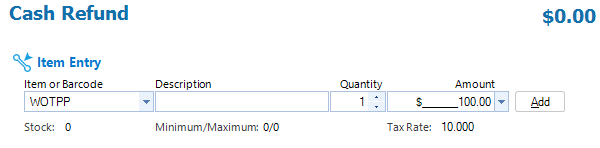
Step 4: Enter the correct amount due under Payment Entry and click Add. The amount due should remain at $0.00
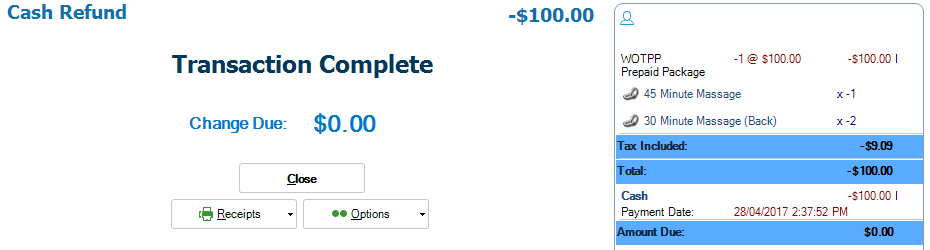
Step 5: You may confirm the refund by clicking on Complete Transaction. A pop-up will appear where you must enter a transaction note. A transaction complete screen will then appear with the amount refunded.
Step 6: Open Cash Sale Transaction Entry (F3).
Step 7: Select the same client under Client Details and add the client to the transaction.
Step 8: Under Item Entry, select the individual entry within the package. Once selected, adjust the quantity to the amount in the prepaid package. Repeat this step if more than one item within this prepaid package.
Example: In our screenshot above, our prepaid package included 1x 45 Minute Massage and 2x 30 Minute Massage (Back). To cancel this prepaid package for our client, we locate both the 45 minute and 30 minute massage and adjust it to the correct quantity within the package. The transaction on the right should show the selected service, followed by the prepaid quantity. Ensure the quantity and balance match.
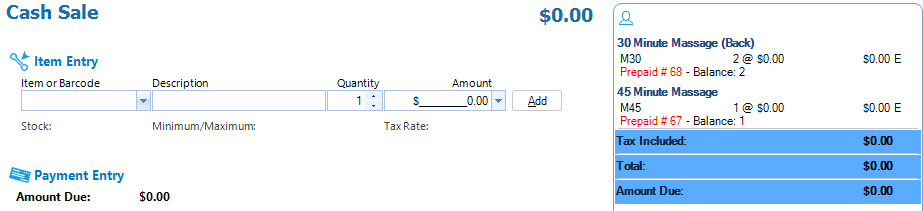
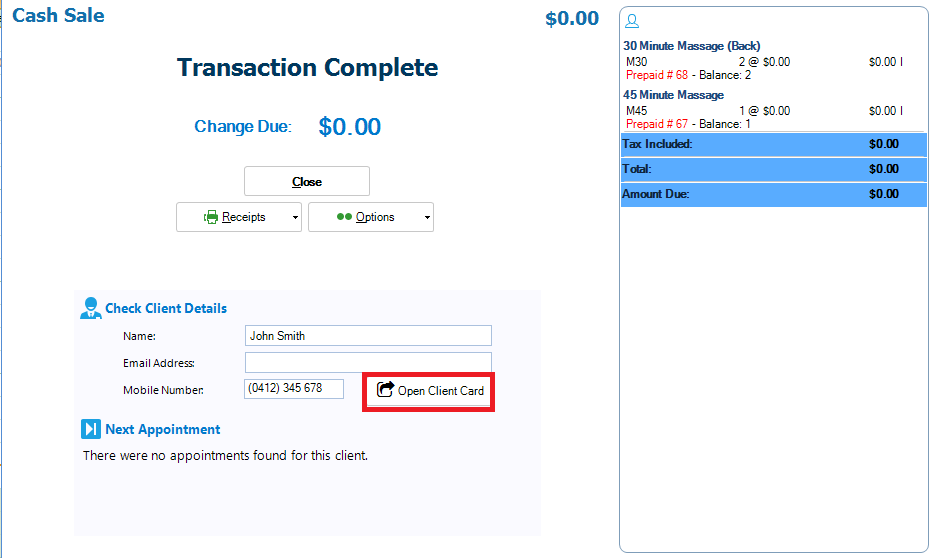
Step 8: Once done, click Add in Payment entry. The amount due should remain at $0.00. Click Add to finalise.
Step 9: You may confirm the prepaid write off by clicking on the Open Client Card button and checking under Prepaid.
0 Comments