
If your business sells and record gift card sales manually, it is better to integrate it into Konnect so you can keep proper track of its usage and claims.
As you have already sold the gift card prior to today's trading day, you may still enter the gift cards as sales into the system without affecting your daily sales record.
To do this, first create a discount code with the following setting:
- Description: 100% Discount
- Type: Percentage Discount
- Value: 100.00
- Tax Rate: 0.000
- Apply to: Gift Cards
- Supplier: (blank)
- Category: (blank)
- Status: Active
Once you have setup the discount code, proceed with the following steps:
Step 1: Go to the Transaction tab and select Cash Sale.

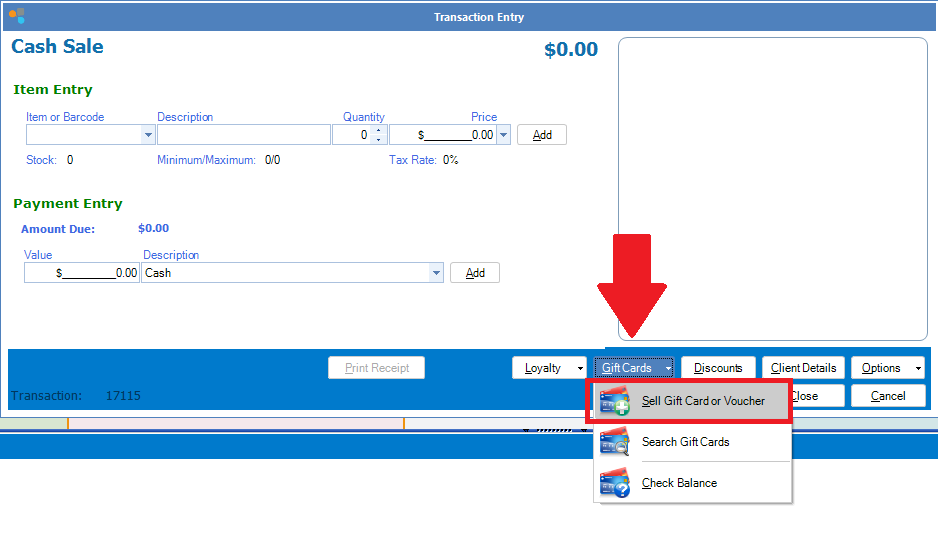
Step 2: Click on Gift Cards and select Sell Gift Cards.
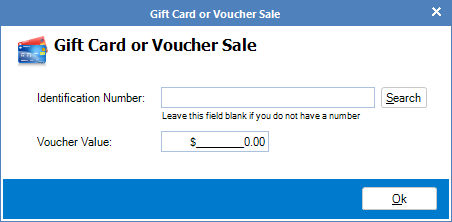
Step 3: Enter the gift card number that is matches exactly to your existing gift card records. It is very important that this number matches or you won't be able to find them when the client uses it. Next enter the remaining value that is on the existing gift card. Once entered, click Ok.
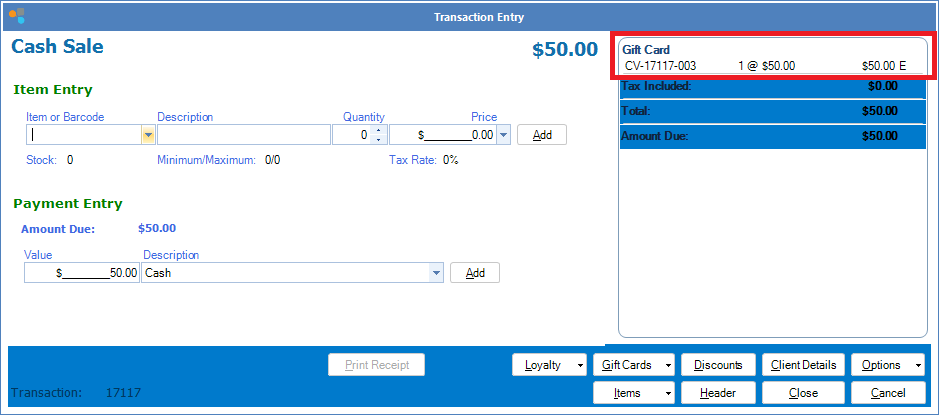
Step 4: The entered gift card will appear on the top right of your transaction entry. If you have multiple gift cards to enter, you may repeat Steps 2 and 3 until you have entered all your gift cards.
Step 5: Once you have finished entering all your existing gift cards, next click on the discounts tab and select a discount that you have created prior. This should apply the discount of 100% and reduce the amount due to $0.00. (It is important that this happens. If there are any amount due, it means the discount was not setup correctly). Once confirmed, click Complete Transaction.
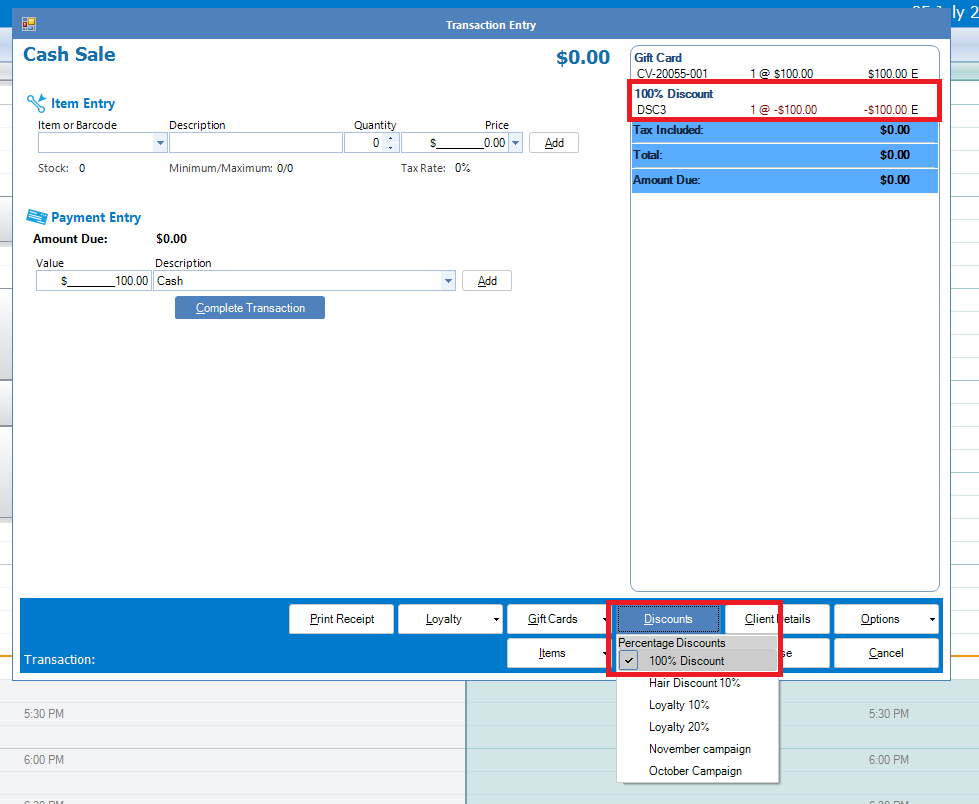
Note: By utilising the Discount, it will discount the entire transaction, rather than individual gift card on the list.
0 Comments