
If duplicate client cards exist within your database, it is best to merge them to prevent confusion with history, booking confirmations etc.
The steps to follow when merging client cards is as follows:
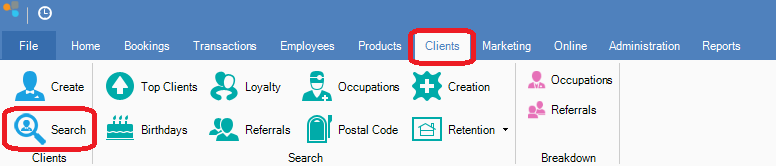
Step 1: Locate the client card you wish to keep. You may do so by going to the Clients tab and selecting Search.
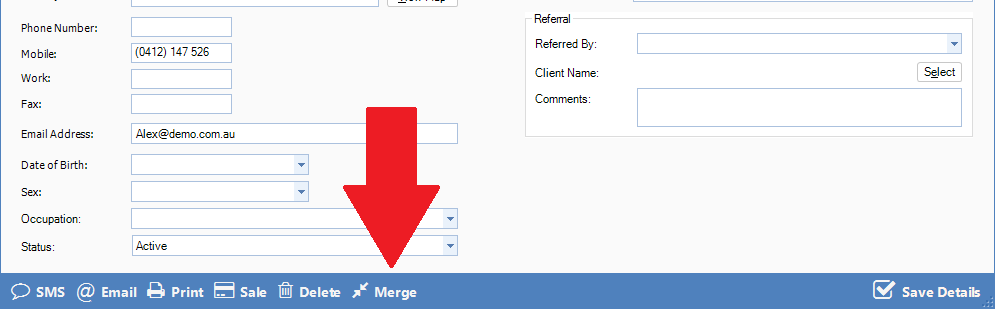
Step 2: Once located, confirm that this is indeed the client card that you want to keep and click Merge.
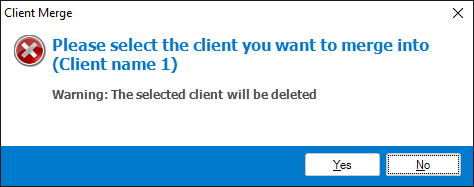
Step 3: A popup will appear prompting you to search for the client you wish to merge into this client. Select Yes.
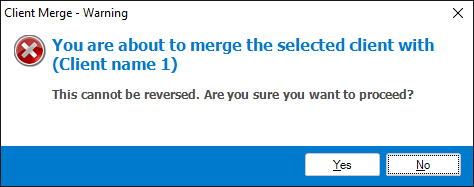
Step 4: A separate search list will appear. You may now locate the client you wish to merge into the 1st client card that you opened. Once found, double click. A popup will appear warning you that you are about to merge the selected client card into your chosen client card to keep. Once confirmed, click Yes.
Step 5: Once the merge process is complete, you will see the client card of the client that you have chosen to keep. The history in the merged client card should also show in the history tab. Click Save Details to finalise the merge process.
0 Comments