
Note: Before you can perform a write on/off, you must have already started trade for the day.
Write On
Step 1: Go to the Transactions tab and select Write On.

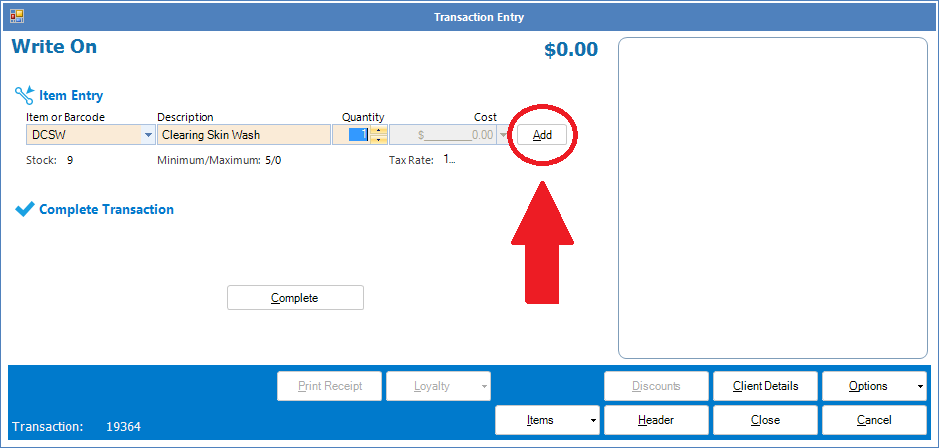
Step 2: The Write On Transaction Entry will appear. Select the item in question from the Item or Barcode drop down list, adjust the quantity as required and select Add.
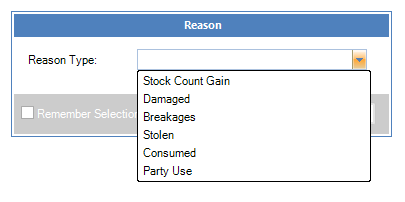
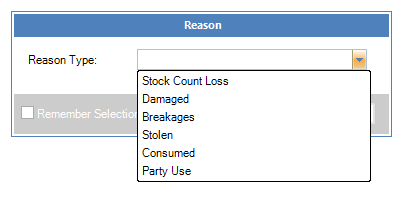
Step 3: A reason pop-up will appear prompting you to select a reason for this write on. Select the most appropriate from the list and click Save.
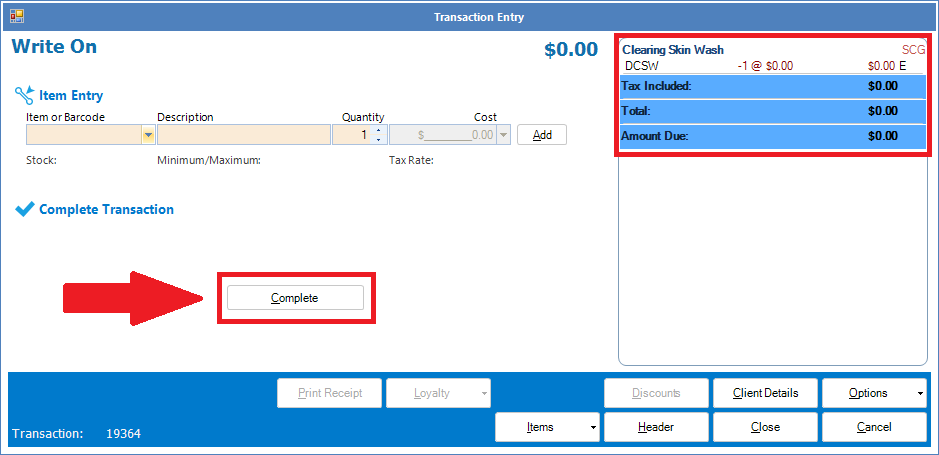
Step 4: The item will now appear on the right side. Continue performing Step 2 and 3 until you have completed your write on process. Once done, click Complete to finish.
Write Off
Step 1: Go to the Transactions tab and select Write Off.

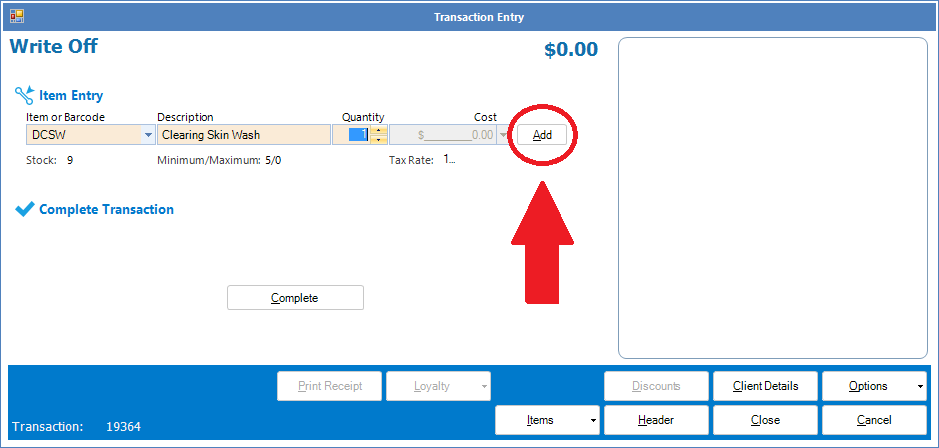
Step 2: The Write Off Transaction Entry will appear. Select the item in question from the Item or Barcode drop down list, adjust the quantity as required and select Add.
Step 3: A reason pop-up will appear prompting you to select a reason for this write off. Select the most appropriate from the list and click Save.
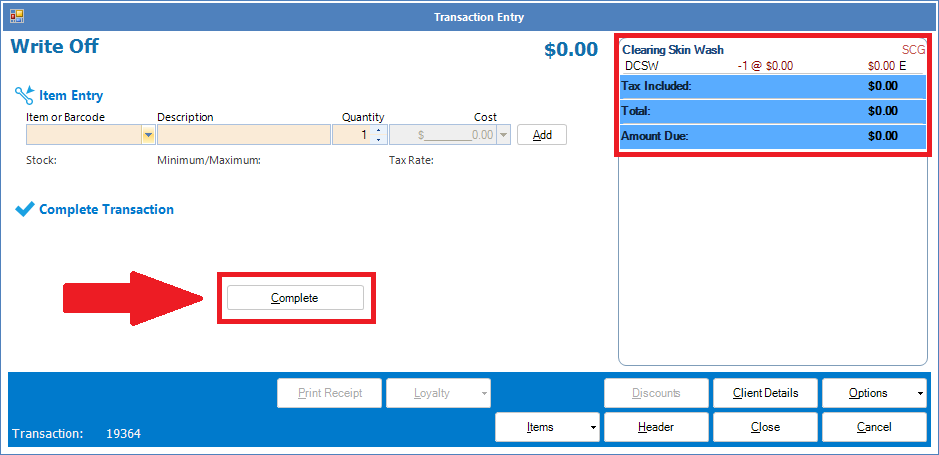
Step 4: The item will now appear on the right side. Continue performing Step 2 and 3 until you have completed your write off process. Once done, click Complete to finish.
0 Comments