
Step 1: Go to the Products tab and select New Service.

Step 2: The Service Maintenance window will display. Enter the relevant details in the fields then click Online Bookings.
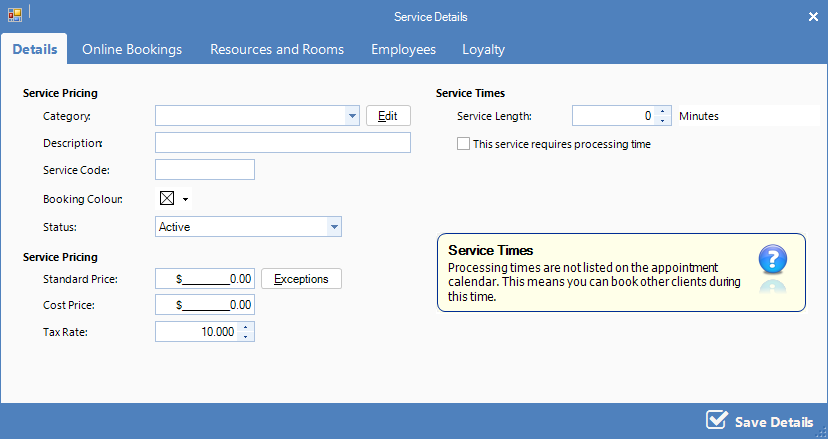
FIELDS
Category: The category you wish the service to be under.
Description: A brief description of the service.
Service Code: Short code that you can manually enter. (note that once the service code is used, it cannot be re-used, even after suspension).
Booking Colour: The colour you wish this service show up on your booking calendar.
Status: If this is a service you currently use (Active) or don't use (Suspended).
Standard Price: The price you wish to sell this service.
Cost Price: The price this service costs.
Tax Rate: The tax rate for this service.
Step 3: If you want to allow this service on your Online Bookings, you may activated here.
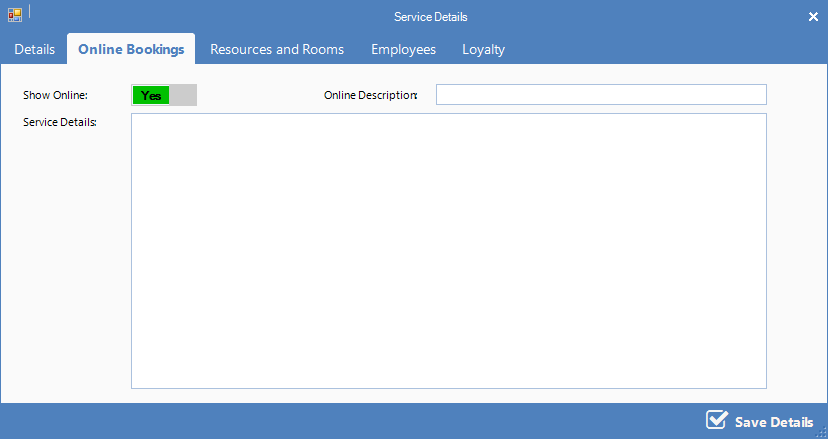
FIELDS
Show Online: If this service can be booked online (Yes) or can't be booked online (No).
Online Description: A brief description of the service.
Service Details: Greater detail of the service.
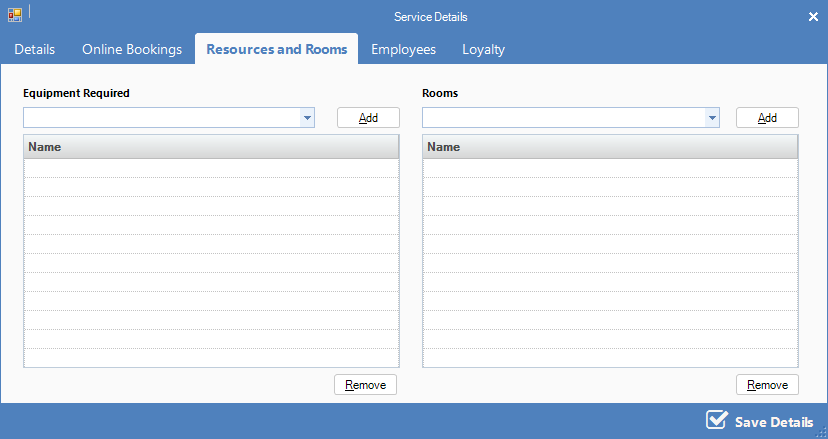
Step 4: If the service requires a resource, enter the details here e.g. a room or a tanning machine.
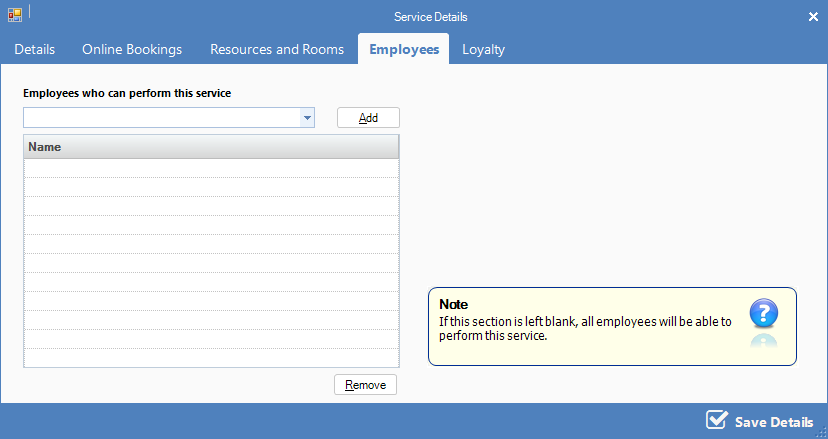
Step 5: If you want to restrict the employee that can perform this service, you may set the criteria here.
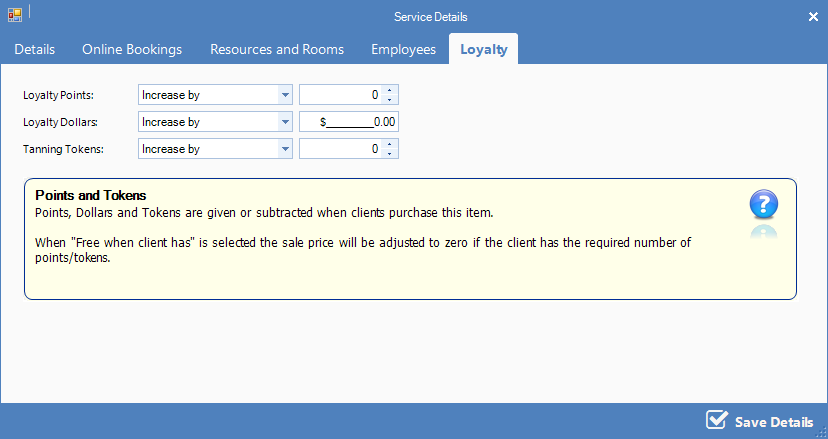
Step 6: If this service earns any points/dollars/tokens for the client, enter the relevant details then click Save Details.
0 Comments