
Step 1: Go to the Products tab and select New Products.

Step 2: The Item Maintenance window will display. Fill in the fields, along with the item price + tax rate (default is 10% GST for Australia) and click Stock Control.
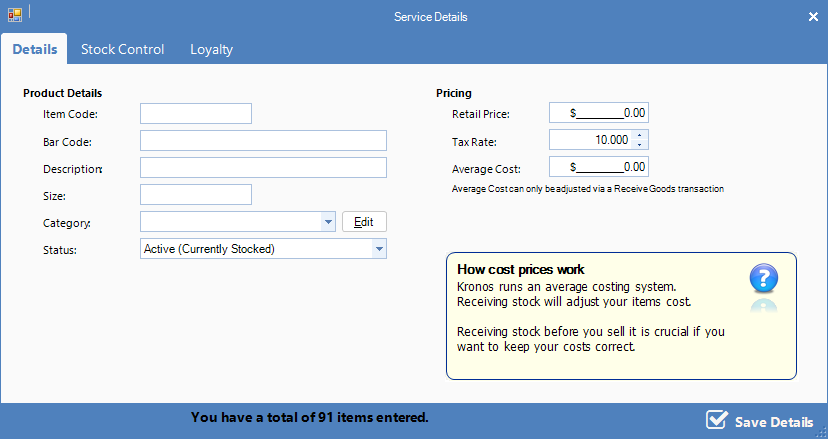
FIELDS
Item Code: Short code for the item so that it can be used in the sales screens to enter manually.
Bar Code: The bar code on the item, allowing you to scan the item.
Description: Brief description of the item.
Size: The size of the item.
Category: The category in which the item belongs to. This will affect reports etc.
Status: If it is currently stocked.
Step 3: The Stock Control section will display. Enter the Stock Control criteria. The sale control also allows you to choose if this product can be sold in cash transactions and/or bookings. Once done, click Loyalty.
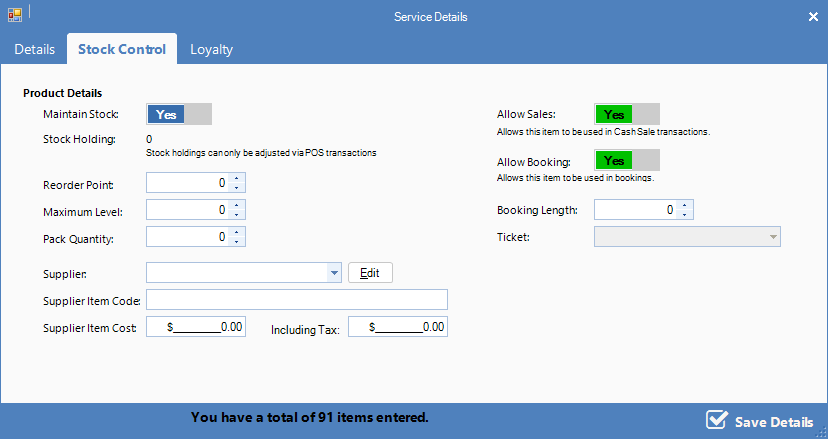
FIELDS
Maintain Stock: Ensure this is checked to allow Kronos to maintain stock holding, making ordering and stock count easier.
Reorder Point: Amount in which stock is reordered once numbers have gone below the set point.
Maximum Level: Maximum amount of this product you would like to hold at any one time.
Pack Quantity: Amount of products that come in one standard box when ordering from your supplier.
Supplier: The supplier's name.
Supplier Item Code: The item code the supplier uses for the item.
Supplier Item Cost: The cost of buying this item from the supplier.
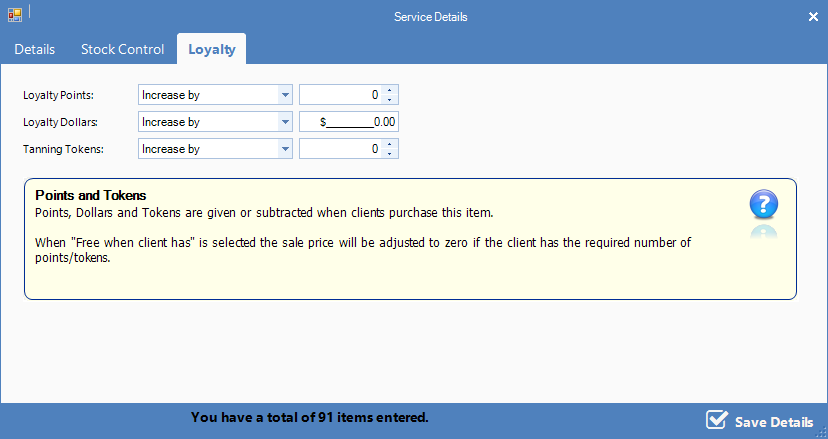
Step 4: The Loyalty section allows you to choose if you would like to include this item in your loyalty program. Enter the amount of loyalty points, loyalty dollars and/or tanning tokens will receive after purchasing the product. Fill in the fields as required. Once finalised, click Save Details.
YouTube Video:
0 Comments