
Konnect helps you to keep track of your store expenses by allowing you to enter them through the program as a transaction.
To enter expenses, you must first create a expense code. To do this:
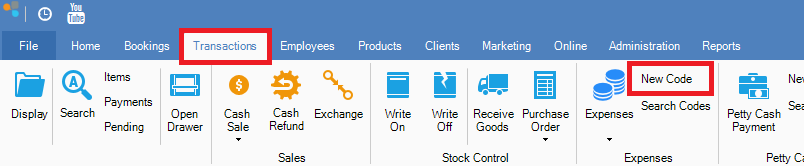
Step 1: Go to the Transactions tab and select New Code under Expenses.
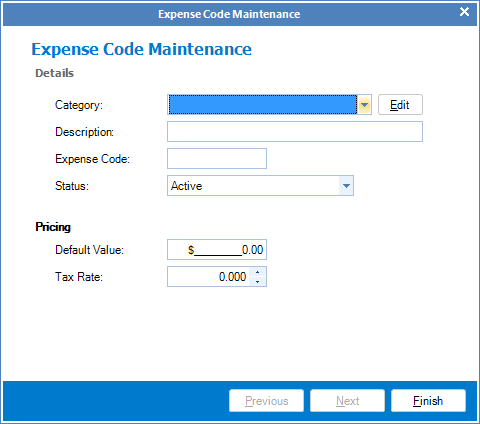
Step 2: The Expense Code Maintenance screen will appear. Follow the prompts to setup your expense code.
___________________________________________________________________
To enter an expense transaction:
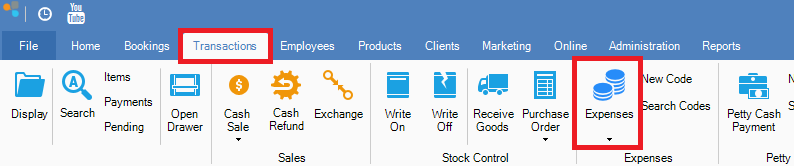
Step 1: Go to the Transactions tab and select Expenses.
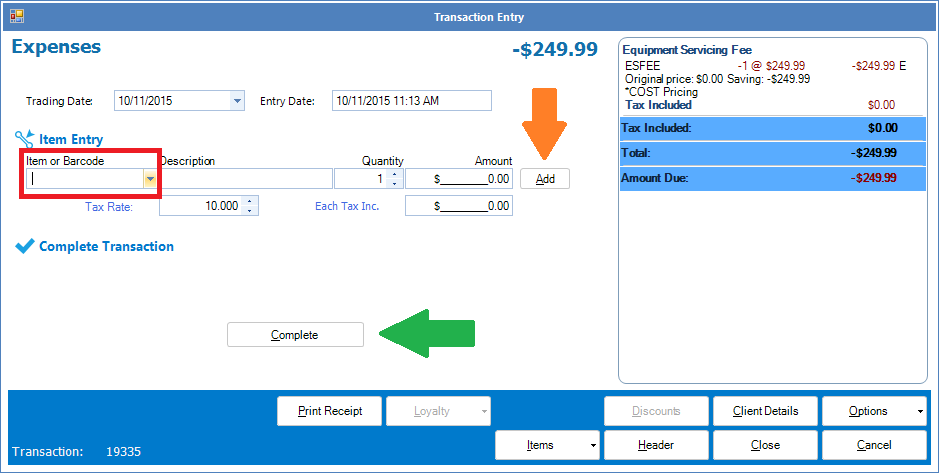
Step 2: The Expenses Transaction Entry will appear. Click on Item or Barcode (red square) to locate your expense code and adjust accordingly. Once done, click Add (orange arrow) and it will appear on the Transaction Entry. Select Complete (green arrow) to save the expense entry.
To reverse an expense transaction:
Step 1: Go to the Transactions tab and select Expenses.
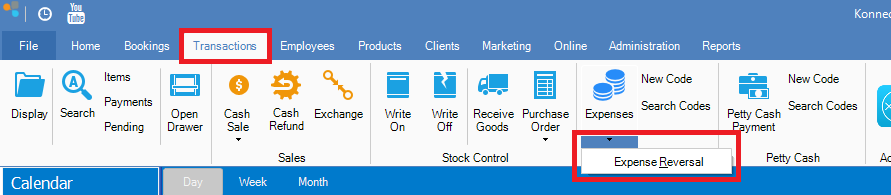
Step 2: The Expenses Transaction Entry will appear. Click on Item or Barcode to locate your expense code and adjust accordingly. Once done, click Add and it will appear on the Transaction Entry. The difference here is rather than a negative amount, it will show a positive amount. Select Complete to save the expense entry.
YouTube Video:
0 Comments