
Start Trade
Step 1: Go to the Transactions tab and select Start Trading.

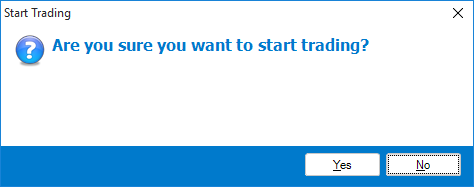
Step 2: A pop-up will appear confirming if you wish to start trade. Select Yes.
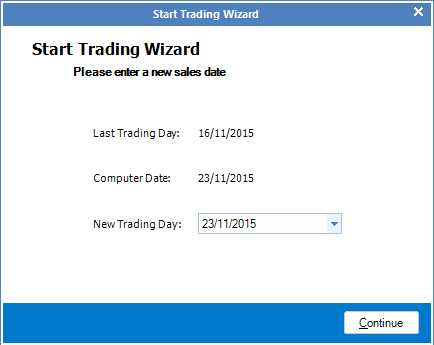
Step 3: The Start Trading Wizard will appear. Ensure the new trading day is correct. Once done, click Continue.
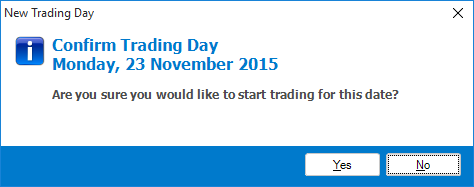
Step 4: A pop-up will appear asking you to confirm today's start trade date. Select Yes if correct.
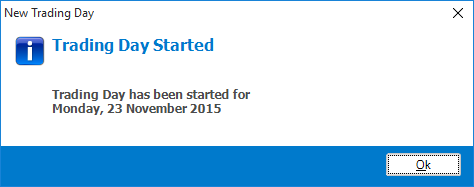
Step 5: Once trading has started, a pop-up will advised trading has started for the selected day.
End Trade
Note: If you set a float in start trade, you will also have to declare this in end trade. Failure to do so will result with a misbalance.
Step 1: Go to the Transactions tab and select End Trading.

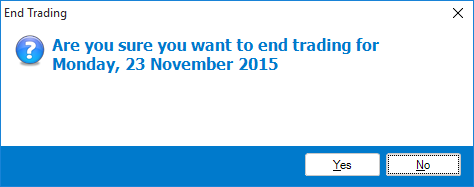
Step 2: A pop-up will appear confirming if you wish to end trade. Select Yes..
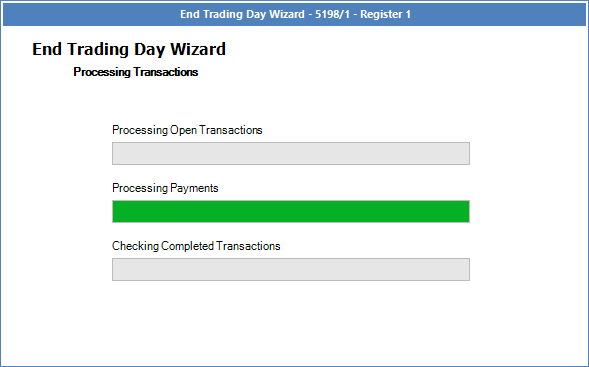
Step 3: The end trade procedure will commence. Once it loads, you will need to proceed with your declaration, starting with cash, vouchers, money order, electronic funds transfer and cheque.
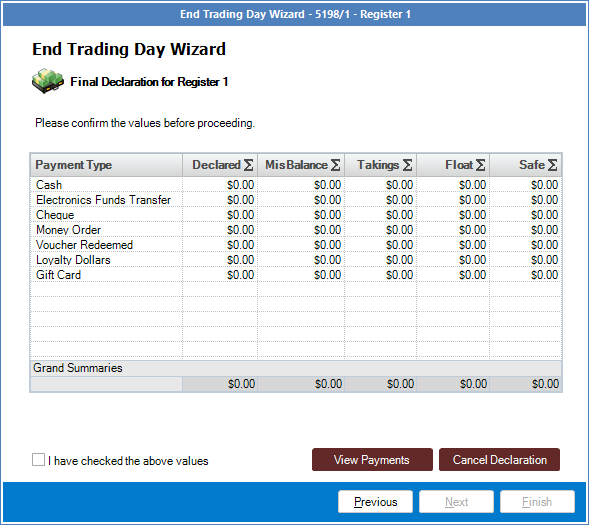
Step 4: At the last page, you will see the final end of trade declaration confirmation. It is here that you check all declared values are correct. If you wish to cancel declaration you may do so by clicking Cancel Declaration. To amend payments, select View Payments. If all declared sums are correct, tick the "I have checked the above values" and select Finish to end trade.
0 Comments