
On occasion, you may have to enter your license details to gain access to the program. Simply follow the prompts and once entered, the program will begin loading.
Before proceeding, please make sure your system is connected to the internet.
Step 1: Enter your software's username and password and click Continue.
Hint: your software's username and password is a set of numbers.
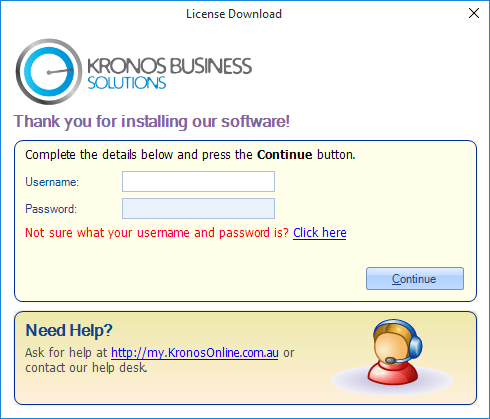
If you do not know your software's username and password, please click one of the following:
I am using Konnect - please click here.
I am using Kronos - please click here.
Note: Ensure the client's details (E.g. email address, phone numbers etc) is correct or else the system will not send them their username and password.
Step 2: Once your username and password is entered, depending on which program you've got, you will be asked to either enter your serial number or select your register number.
Kronos: Enter your serial number or select your register from the drop down box
Konnect: Select your register number for this computer
Select the correct register number from the drop down box and click Request License.

Step 3: You will now see a screen advising it is awaiting update.
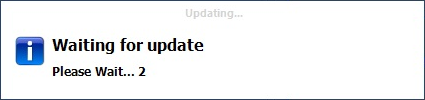
Note: If waiting for update has failed, it is because the entire serial number of the register in our system do not match. License may need to be approved. Before approval, click here to see approval criteria.
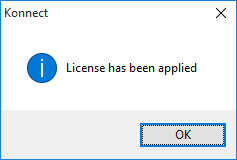
Step 4: Shortly after, you should see a pop-up saying "License has been applied". Simply press OK and restart the program.
If you continue to face difficulty with starting the program, please contact our support line on 02 8004 7684 and press 2.
0 Comments