
Step 1: Go to the Administration tab and select Work Types.

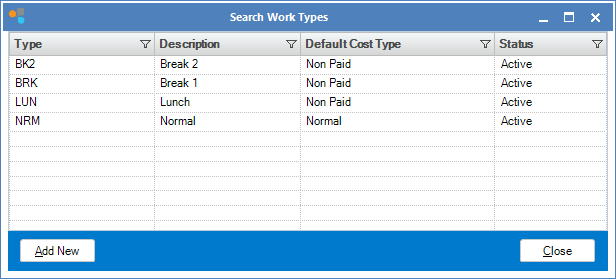
Step 2: The Search Work Types window will open. To Edit a work type double click on the work type you wish to edit. To Setup a new work type click the Add New button at the bottom left.
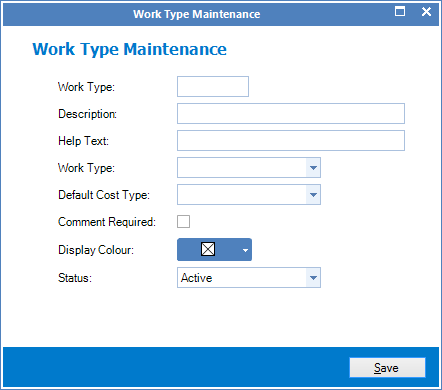
Step 3: The Work Type Maintenance window will open. Fill in the fields, then click on the Save button to Setup/Edit your work type.
FIELDS
Work Type: A short code for the work type
Description: A breif description of the work type
Help Text: A small reminder for the staff eg. If it's a small paid break you might put "Remember to have your break near phone"
Work Type: If this is normal working type, then you would click Pay. If it were a lunch break you would leave the section blank.
Defualt Cost Type: The cost for this work type,eg. If it's a lunch break you would put Non Paid.
Comment Required: Check if you wish comments on this work type.
Display Coulour: The colour you wish this Work Type to display on the booking screen.
Active: If this is a current Cost type you use (Active) or not (Suspended).
YouTube Video:
0 Comments