
To turn on passwords:
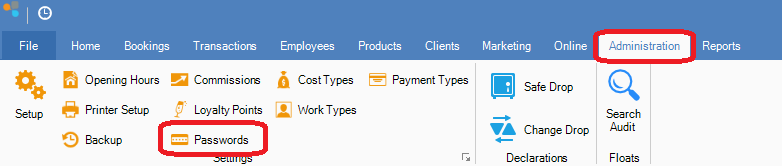
Step 1: Go to the Administration tab and select Passwords.
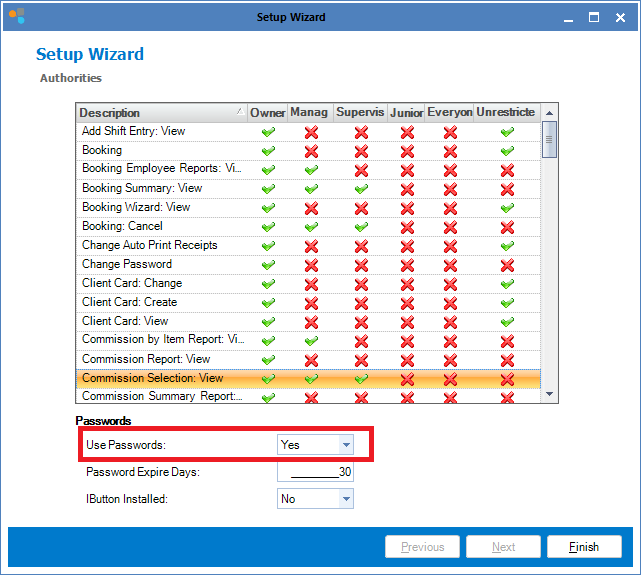
Step 2: In the password setup screen, select Yes in Use Passwords.
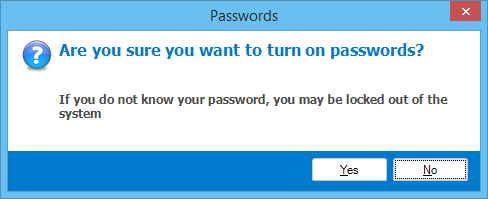
Step 3: A pop-up will appear warning you that you must know your passwords before activating or risk being locked out of the system.
NOTE: You may find that your list of description is quite empty. The list only populates when passwords is activated and the new authority is logged as features are selected.
Step 1: Check your passwords are setup correctly.
Step 2: Go to Administration->Passwords and select Yes in Use Passwords. Click Finish to save.
Step 3: Go around the system and click on features you wish to setup passwords. As you click on a feature, a password request box may or may not appear, however in the background, it is logging new authorities in your password description list.
Step 4: Once you are done, you can then go back into password authorities and select the just-made description and change the authorities as necessary.
If you require assistance with setting up passwords, please contact the support line on 02 8004 7684.
____________________________________________________________________
To turn off passwords:
Step 1: Go to the Administration tab and select Passwords.
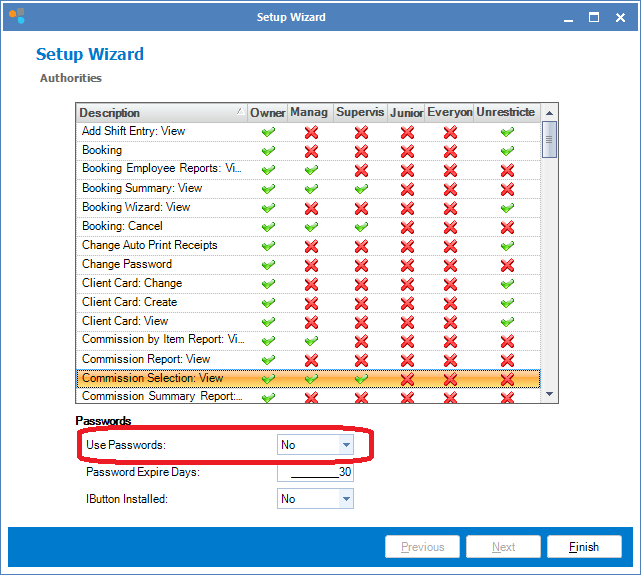
Step 2: In the password setup screen, select No in Use Passwords.
YouTube Video:
0 Comments