
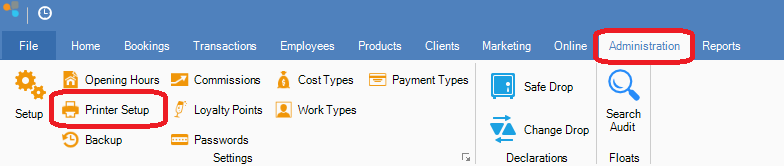
Step 1: Go to the Administration tab and select Printer Setup.
Step 2: The Setup Wizard will open on the Printing Setup page.
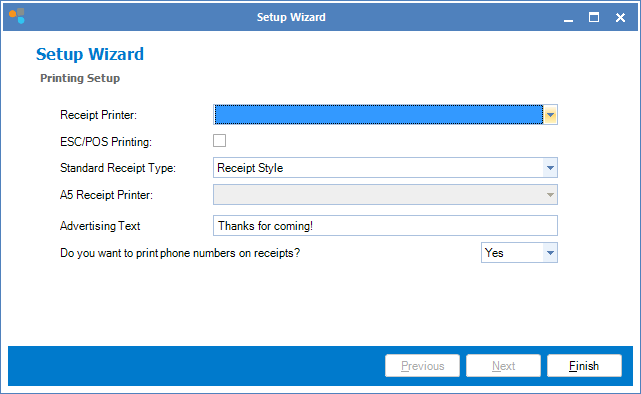
Step 3: Using the Receipt Printer combo, select the printer you wish to use. If the printer does not show in the combo, install the printer drivers that came with your printer and restart Konnect.
Step 4: If your printer does not support graphic printing or is printing very slowly, tick the ESC/POS printing box.
Step 5: Enter the type of receipt, Advertising text and Phone numbers you would like to appear on the receipt.
Step 6: Click Finish and restart Konnect.
_______________________________________________________________________________
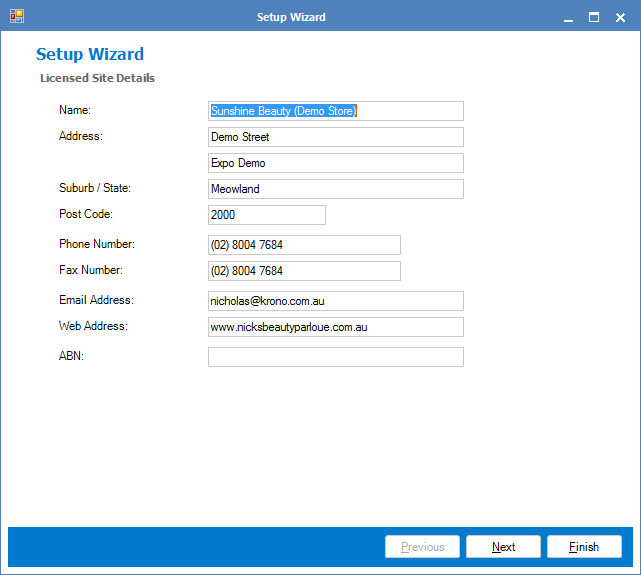
Changing the business details on the receipt printer (Address, ABN etc)
Step 1: Go to the Administration tab and select Setup.
Troubleshooting: Printer not working
* Konnect does not control how your printer works.
* Try printing a test page from Windows to confirm your printer is working.
* The most common issue is a misconfigured printer driver setup.
* Try turn on or off the ESC/POS Printing setting in the Setup
* We recommend restarting Konnect after changing printer settings
For more information, refer to this article.
0 Comments