
Step 1: Go to the Employees tab and select New.
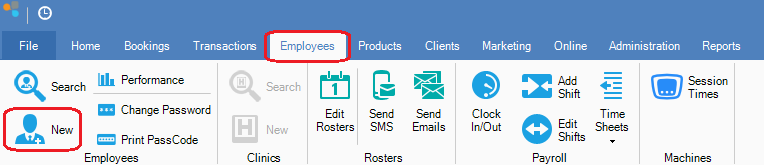
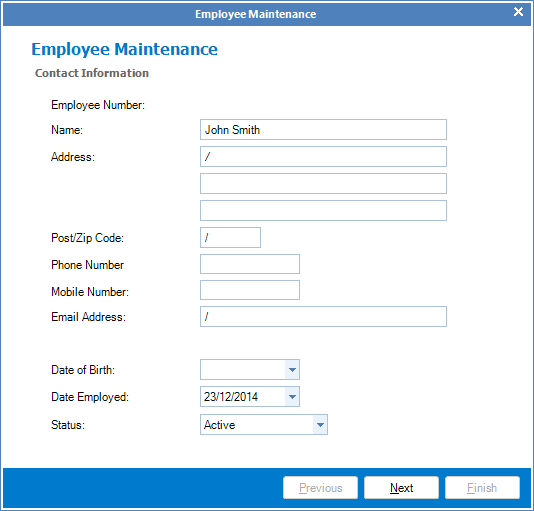
Step 2: The Employee Maintenance screen will appear. Enter all the relevant contact information and click Next.
Step 3: Next you will see the Payroll, Commissions and Calendars option. Enter the relevant details and click Next.
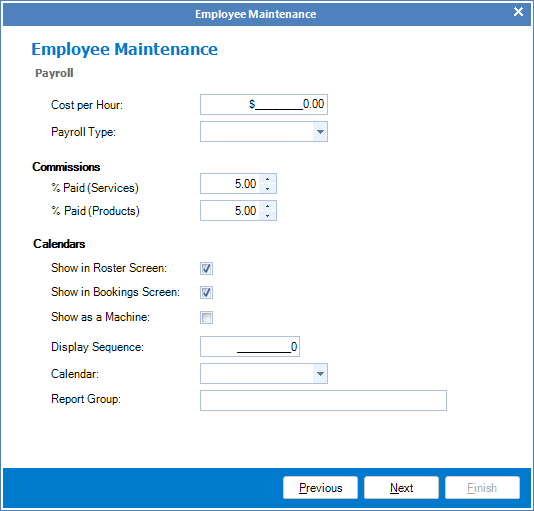
Payroll: Assist in working out costs when creating rosters to keep track of your budget.
Commissions: Will default to 100 and this will be the commission you created in Konnect Setup, only change if this employee is to receive a different commission payout.
Calendars: Determine where your employees will be displayed in the calendar. E.g. if Sally was only working reception and was not someone that needed to be booked out like a hair dresser you would only have to check Show in Rosters Screen.
Step 4: Next you will see Logon Information and Health Funds.
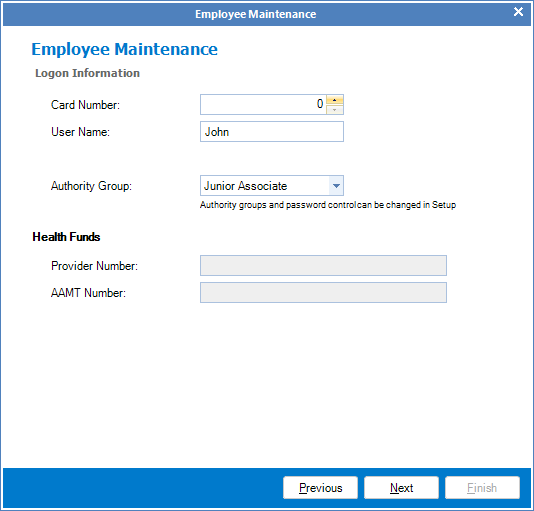
Card Number: Can be used instead of a user name when prompted for their user name and password.
User Name: Can be used when the employee needs to enter their password. It is best to keep it similar to their name so it is easy to remember.
Authority Group: Defines the level of access an employee has while using Konnect. An Owner has full access and can make all changes. You are able to set up what access employees levels have in Konnect Setup.
Step 5: Next you will see Online Bookings and Online Access.
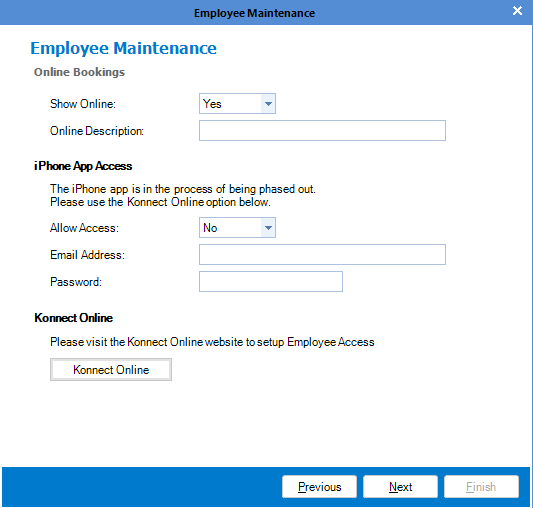
Online Bookings: Determines whether employee will show up on online booking.
Step 6: Lastly you will now see Default Work Hours. This is where you can set your employee's default work hours. Once done, click Finish.
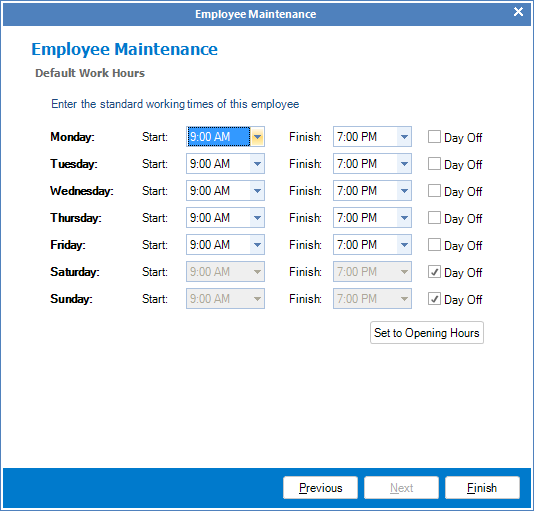
Step 7: Once saved, please restart the program for the changes to apply.
YouTube Video:
0 Comments