
Konnect allows you to change the sequence of employees displayed on the main calendar.
To do this:
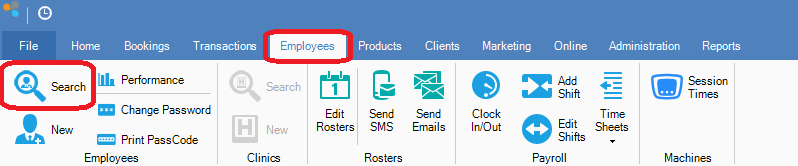
Step 1: Go to the Employees tab and select Search.
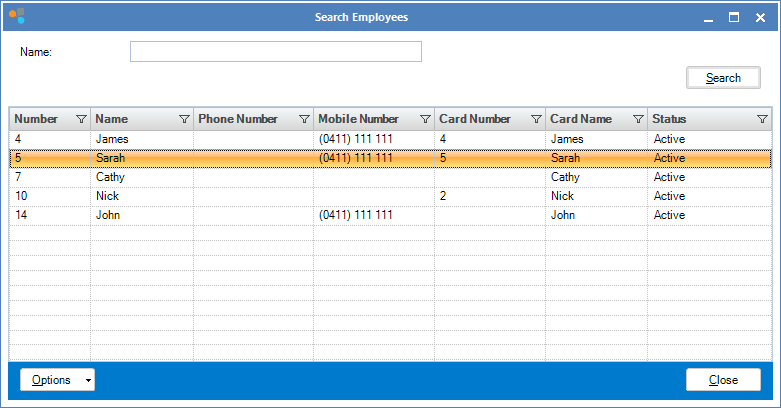
Step 2: The Search Employees window will show. Double-click on the employee you wish to change the sequence.
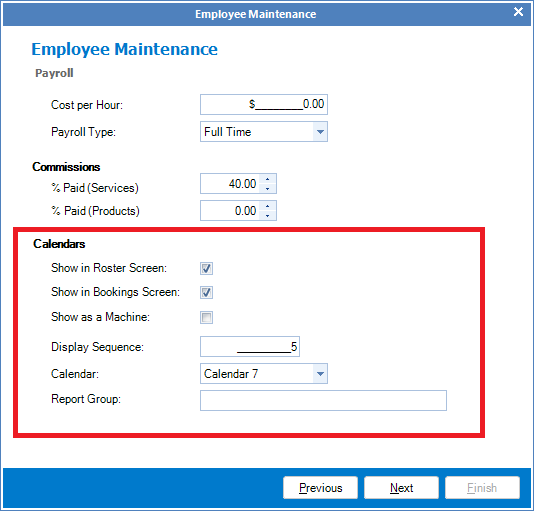
Step 3: The Employee Maintenance screen will open. Click Next until you see Calendars shown below.
Step 4: In the Display Sequence, assign a number for the employee. This number corresponds to the sequence of employees shown on the calendar. An employee assigned the number 1 would result in the employee being shown in the rightmost column. The highest numbered employee will be shown the leftmost column.
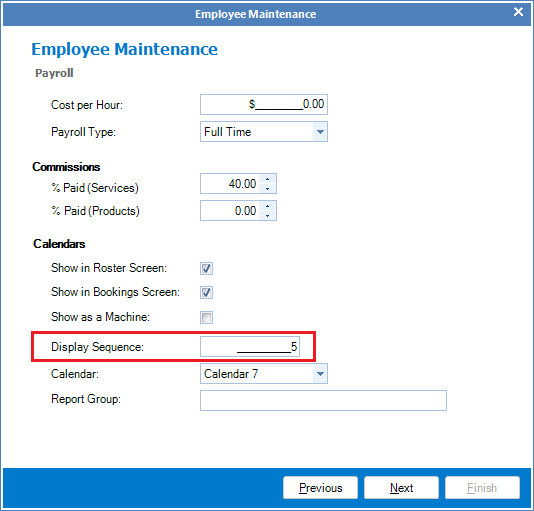
Step 5: Once done, click Finish to save and all the employee's position will change.
Step 6: Repeat step 2 to 5 for each employee until all employees are in their desired spaces.
0 Comments