
Note: Reminders (and other messages) are prioritised in a higher order than marketing/promotional campaigns. Meaning if you send out a promotional campaign and reminders, the reminders will be prioritised and sent out before your promotional campaign.
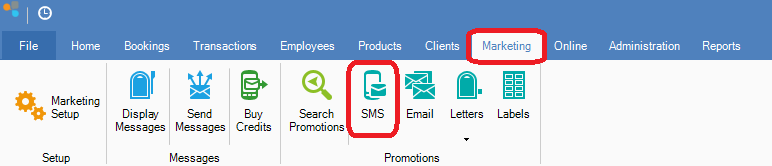
Step 1: Go to the Marketing tab and select SMS.
Step 2: The Promotions Setup window will open. Fill in the fields then click Next.
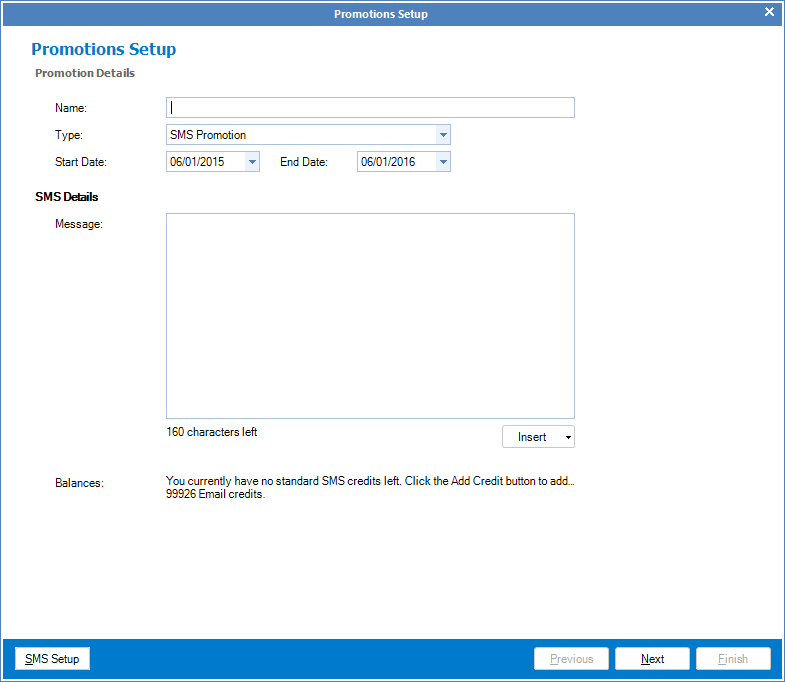
FIELDS
Name: The name of your promotion
Type: The type of promotion you are doing
Start Date: The start date of your promotion (This doesn't effect sending of the promotion. This is just for your reference)
End Date: The end date of your promtion (This doesn't effect sending of the promtion. This is just for your reference)
Message: The message you would like to send as part of the promotion.
Step 3: On the Select Clients page, you are able to customise the message by narrowing down the type of clients you send the message to via the selection criteria. Note that the selection criteria tabs functions independently and do not interact with the other tabs. Once you are happy with the number of clients found, click Add to Promotion and select Next.
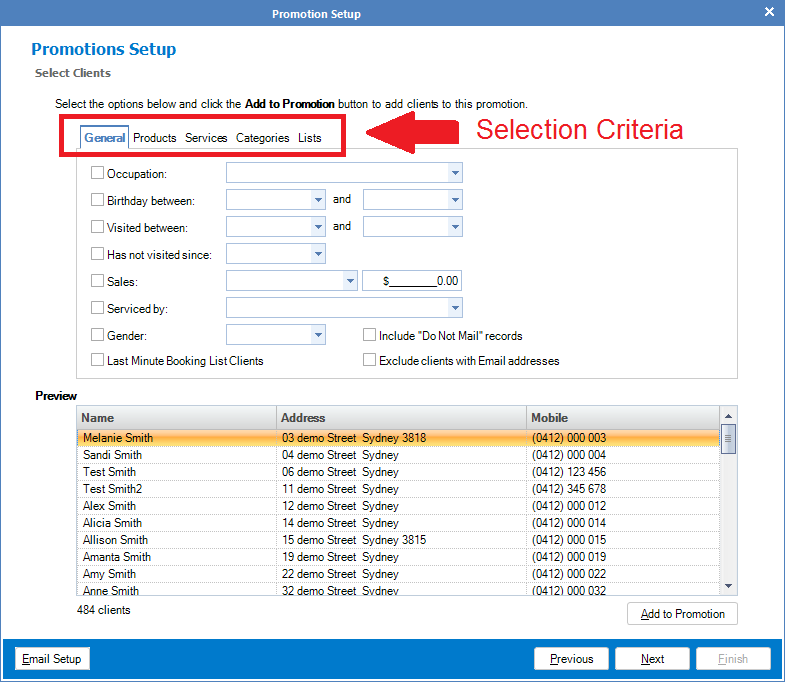
Note: Depending on the size of the database, once Add to Promotion is clicked, it can take the system some time to compile that list and add them onto your promotion list. Please be patient while the system does this and avoid clicking other things as this may freeze the system.
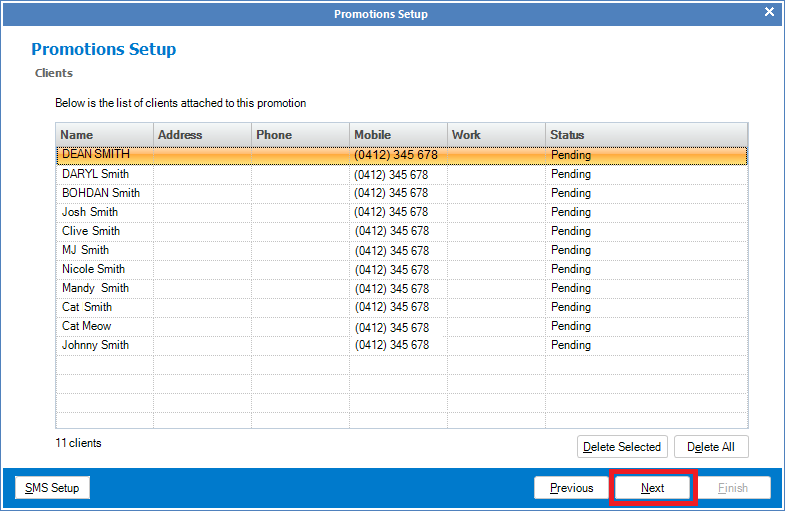
Step 4: This window will show you all the clients you have added to this promotion. You are able to select clients and delete them by clicking on the client's name then clicking on the Delete Selected button. Once you are sure, click Next.
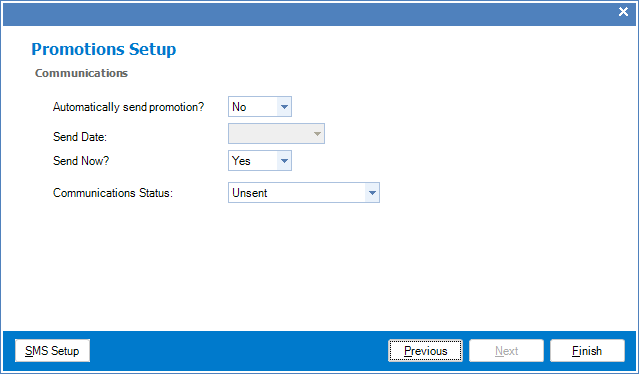
Step 5: The Communications page will open. Fill in the fields then click Next.
FIELDS
Automatically send promotion?: Select No if you want to manually send the promotion, Yes if you want Kronos to automatically send it for you
Send Date: If you selected "Yes" in the above field, you need to select the date that you would like the promotion to be sent out.
Send Now?: If you selected "No" you need to decide if you would like to send to promotion now "Yes" or not "No"
Communications Status: Stays as Unsent
Note: Once you have created the promotion, you are unable to change the parameters or change the date that the promotion sends. Please ensure that you have selected the correct parameters/dates before sending.
Pausing and resuming campaign creation
If you have started on creating a campaign but not yet ready to send it out, simply select No in both Automatically Send Promotion and Send Now. This will put the promotion on the Drafts list, to which you can re-open later to finish your campaign.
YouTube Video:
0 Comments