
Step 1: Go to the Products tab and select New Professional.

Step 2: The Professional Product Maintenance page will display. Fill in the fields and once done, click Stock Control.
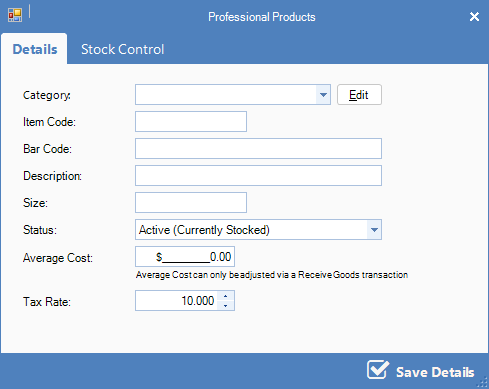
FIELDS
Item Code: Easy short code for the item so that it can be used in the sales screens to enter manually
Bar Code: The bar code on the item so you can scan the item
Description: A brief description of the item
Size: The size of the item
Category: The category the item is under. This will affect reports etc.
Status: If this is an item you currently stock
Average Cost: The average cost of the item
Step 3: The Stock Control will display. Fill in the fields and once done, click Save Details.
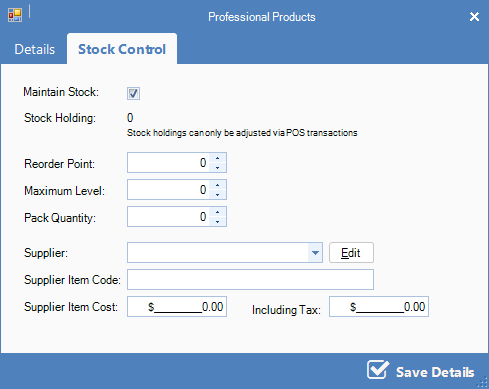
FIELDS
Maintain Stock: Ensure this is checked to allow Kronos to maintain stock holding. This will make ordering and stock count easier.
Reorder Point: Amount in which new stock is ordered when stock numbers fall below this set point
Maximum Level: Maximum amount of product the store can hold at one time
Pack Quantity: Amount of products that come in one standard box when ordering from your supplier
Supplier: The supplier's name
Supplier Item Code: The item code the supplier uses for the item
Supplier Item Cost: The cost of buying this item from the supplier
YouTube Video:
0 Comments