
Step 1: Go to the Administration tab and select Payment Types.

Step 2: The Payment Types screen will display. Click the Add New button.

Step 3: You will now see the Payment Type Maintenance page.
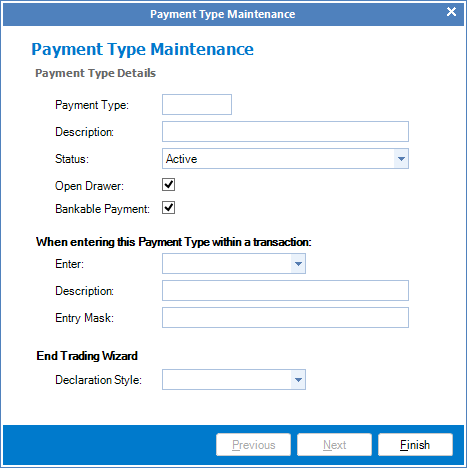
Step 4: Enter the details of the payment type you wish to setup.
a. Payment Type - This must be a 3 letter code to identify the payment type.
b. Description - Enter a description that will be shown on reports and within transactions.
c. Status - Active = A currently used payment.
Suspended = A payment type that cannot be selected in new transactions.
d. Open Draw - If you would like the cash drawer to open when using this payment type in a transaction, tick the Open Draw checkbox.
e. Bankable Payment - Tick the Bankable Payment checkbox if you take this payment type is deposited into a bank account.
f. Enter - If selected, Kronos will ask you to identify the payment when used within transaction screens.
g. Description - What the user must enter to identify the payment.
h. Entry Mask - The required entry format of the identity.
i. Declaration Style - The entry format used at end trading.
Cash = Denomination must be entered
Standard = Total or individual amounts must be entered
Step 5: Once done, click Finish.
___________________________________________________________________
Suspending a Payment type
Step 1: Go to the Administration tab and select Payment Types.
Step 2: The Payment Types screen will display. Double click on the payment type in question and change the status to "Suspended (No longer used).
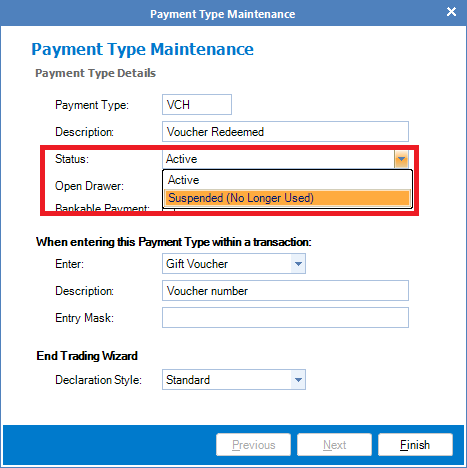
Step 3: Once done, click Finish.
YouTube Video:
0 Comments