
Konnect allows you to backup your data either locally or uploading a copy onto our secure servers for external safekeeping.
To backup locally:
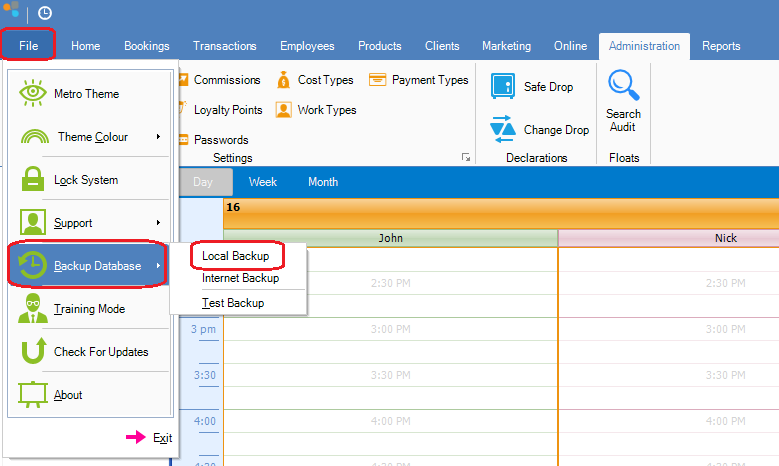
Step 1: Go to the File tab, select Backup Database and click Local Backup.
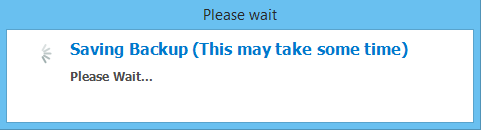
Step 2: You will then see a popup advising the Local Backup is currently in process. This will take a few minutes. Please do not turn off your PC or close Konnect.
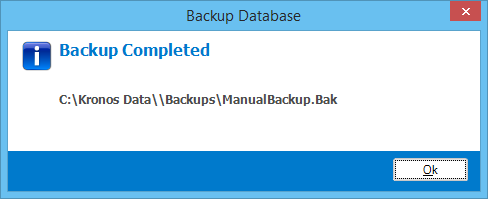
Step 3: Once done, you will see a confirmation pop-up advising it is now finished, along with the location of your backup file. If you wish you may copy the file into a USB stick for safe keeping.
To backup online:
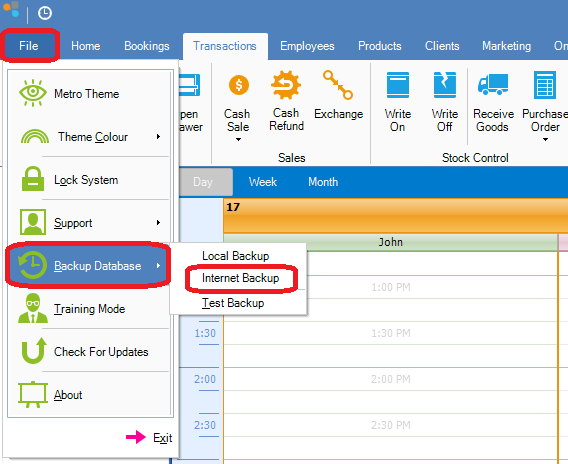
Step 1: Go to the File tab, select Backup Database and click Internet Backup.
Step 2: A pop-up will appear advising that you are about to perform an online backup, and that this may take a while depending on your internet speed.
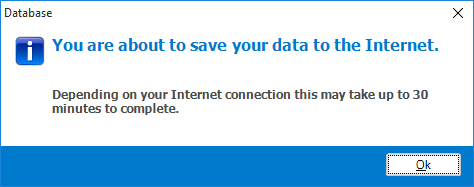
Step 3: A loading screen will then appear showing upload status. Waiting times for completion will depend on internet connection speed. The percentage complete will indicate its upload status.

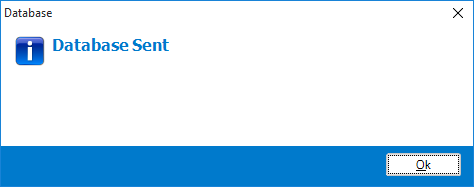
Step 4: Once completed, you will see a confirmation popup advising so.
____________________________________________________________________
Setting up automatic local and internet backup.
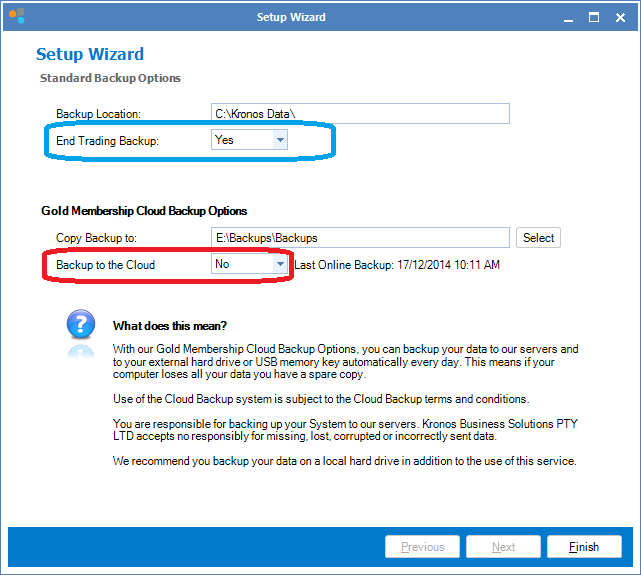
Konnect is able to perform a local backup at the end of every trade and internet backup throughout the day automatically.
To do this:
Step 1: Go to Administration and select Backup.
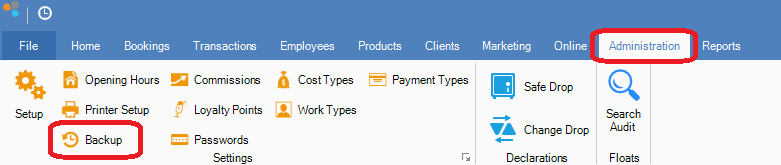
Step 2: The Standard Backup Options screen will appear.
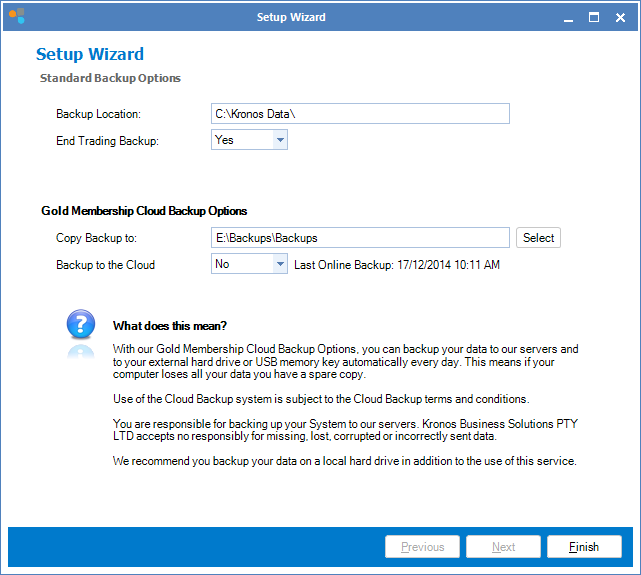
Step 3: For local backup, select Yes in End Trading Backup. For Internet (cloud) backup, select Yes to Backup to the cloud. A date will appear on the right showing the last online backup date and time.
YouTube Video:
0 Comments