
Konnect can send booking reminders via email and/or Mobile text (SMS) to your clients.
Note: Reminders (and other messages) are prioritised in a higher order than marketing/promotional campaigns. Meaning if you send out a promotional campaign and reminders, the reminders will be prioritised and sent out before your promotional campaign.
To setup Mobile Text (SMS) booking reminders:
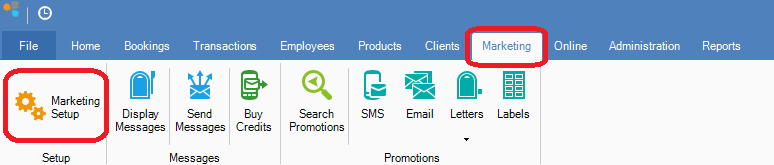
Step 1: Click on the Marketing tab and select Marketing Setup.
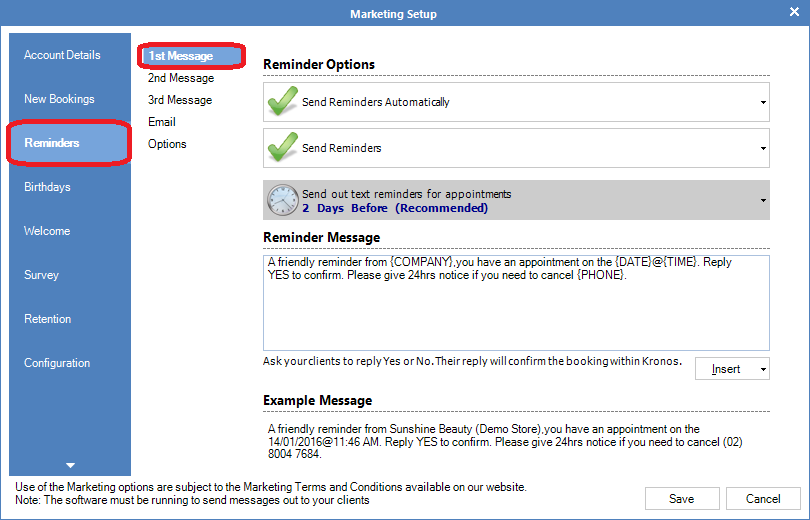
Step 2: The Marketing Setup window will open. Click on the Reminders tab and select SMS.
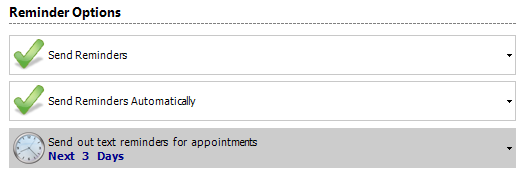
Step 3: You can then decide on how you would like to setup your reminders.
A) If you would like to setup reminders
B) If you would like the reminders to be automatic
C) When you would like the reminders to be sent out.
Step 4: Enter the message you would like to send out to your clients under Reminder Message.
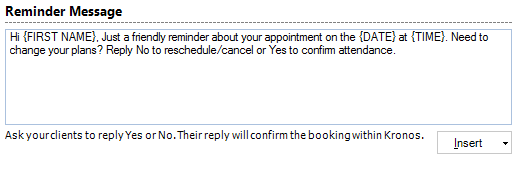
To customise the message, add the links listed below.
{FIRST NAME} to insert the client's first name.
{LAST NAME} to insert the client's last name.
{TIME} to insert the time of the client's booking.
{DATE} to insert the date of the client's booking.
{POINTS} to insert the amount of loyalty point the client currently has.
(DOLLARS} to insert the amount of loyalty dollars the client currently has.
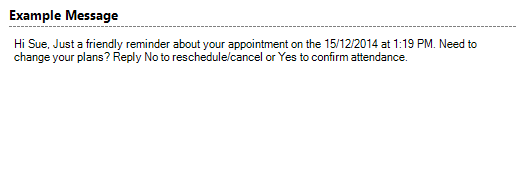
Step 5: A sample message of how the client will receive the email will be shown. If you are satisfied with the message, click Save.
Notes:
- Your computer must be switched on with Konnect running in order for the software to send out automatic messages.
- 160 characters = 1 credit. Replies received does not incur credit usage.
- Only one reminder will be sent per booking. If you change the booking, another notice will not be sent (this can be changed in reminder settings).
- YES and NO confirmations do not work with manual reminders.
- Konnect will only send reminders within the time frames setup.
- As we used a shared mobile service, replies are only received back to your store within 48 hours of a message sent to the client.
- If your reminders are not sending out, click the Configuration tab under Marketing Setup to set timeframes for Queue Messages times and Transmit SMS Times. Queued should be 8am-1pm and Transmit should be 8am-8pm.
- Clients that do not have a mobile number or Email address will not have reminders sent to them.
- A reminder will not be sent to a customer if the booking is made on the same day of the service (the booking must be confirmed or else a reminder will still be sent out).
0 Comments